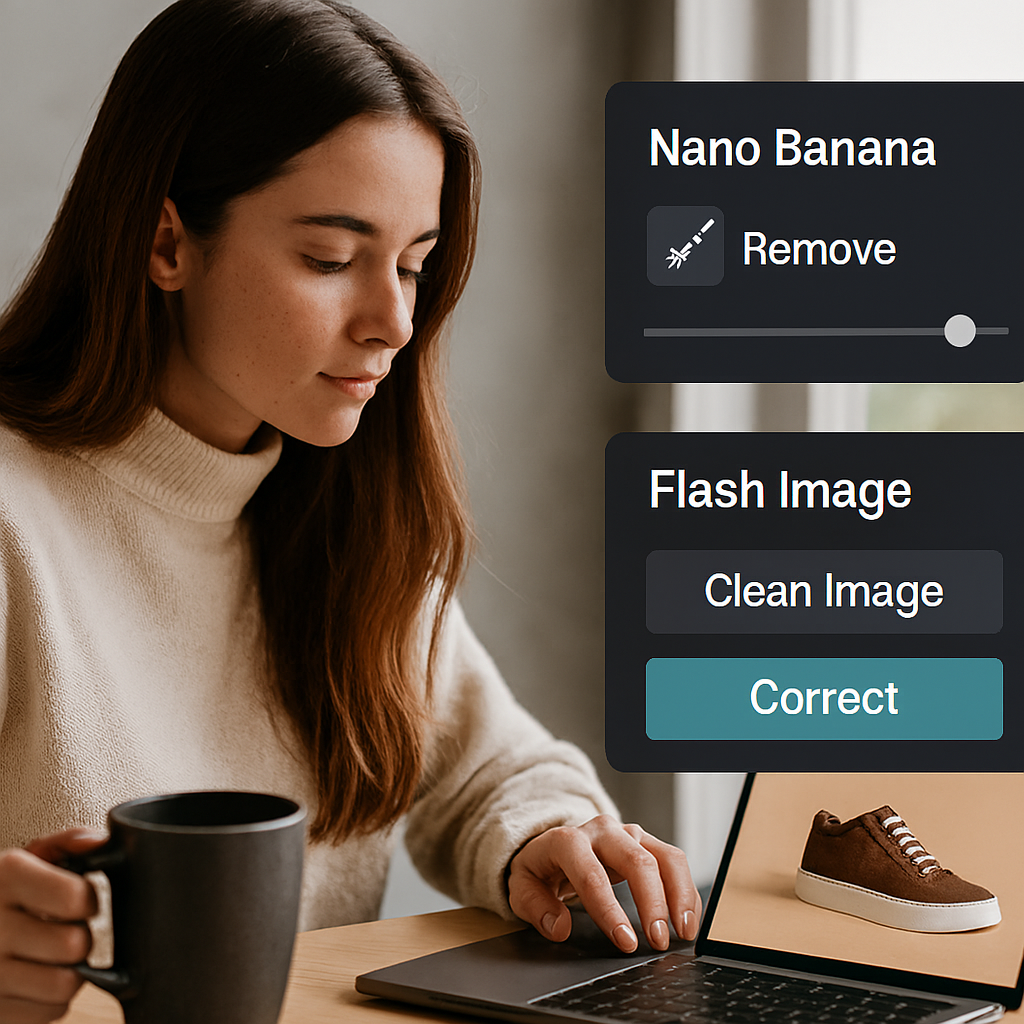
📸 Why AI backgrounds are a game-changer
- Cost-effective: No need to rent studios or hire photographers for every product update.
- Scalable: Generate hundreds of variations for seasonal campaigns, A/B tests, or marketplaces.
- On-brand: Customize backgrounds to match your color palette, mood, and audience expectations.
- Fast turnaround: Go from raw product image to polished visual in under 2 minutes.
🧠 How it works
AI background generators use machine learning to detect your product, remove its original background, and place it into a new scene—styled to your brand. Some tools offer drag-and-drop templates, while others let you generate custom environments using text prompts.
🧰 Recommended tools (2025 update)
✅ Most Popular and User-Friendly AI Product Photo Tools
| Tool Name | Status | Notes |
|---|---|---|
| Photoroom | 🔥 Very Popular | Widely used on mobile and desktop. GPT-image-1 powers staging, beautifier, and mockups. Intuitive UI. |
| Pixelcut | ✅ Popular | Fast background removal and seasonal templates. Great for mobile workflows. Over 50M users. |
| Pebblely | ✅ Moderate | Good for auto-light matching and styled scenes. Used for over 25M images. |
| Claid.ai | ⚙️ Enterprise | Strong API and batch processing. Best for catalog teams and ad agencies. Less intuitive for solo creators. |
| Caspa AI | ⚙️ Niche | Ideal for infographic-style product shots and virtual models. Mostly used by e-commerce teams. |
| Aiarty Image Matting | 🧪 Technical | Supports batch processing of 3,000+ images. High precision, but UI is minimal and backend-oriented. |
🔄 Easier and more widely used alternatives:
- Canva (Magic Edit): Offers background removal and scene generation. Extremely popular and beginner-friendly.
- Adobe Express: Combines background removal with mockup creation and branding tools. Works well on mobile.
- Fotor / Remove.bg: Ideal for quick background removal and simple scene placement. Fast and accessible.
🎯 Step-by-step workflow
- Capture your product: Use natural light and a plain background. Smartphone photos work fine if sharp and well-lit.
- Upload to AI tool: Choose one of the platforms above. Most accept JPEG or PNG formats.
- Remove background: Use the “Remove” or “Cutout” feature. Confirm clean edges around the product.
- Choose or generate a new scene: Select a template or enter a prompt like “minimal beige shelf with soft shadows.”
- Adjust lighting and shadows: Match the product’s lighting to the scene. Most tools auto-adjust, but manual tweaks help.
- Export: Save in 1080×1080 or 4:5 format for Instagram, 16:9 for web banners, or transparent PNG for overlays.
🎨 Tips for brand consistency
- Color palette: Stick to 2–3 brand colors in backgrounds. Use hex codes if the tool allows.
- Texture and tone: Match your brand’s vibe—clean and minimal, earthy and organic, bold and high-contrast.
- Scene repetition: Use similar props or surfaces across product lines to build visual identity.
- Logo placement: Add subtle branding in corners or shadows if needed.
📦 Use cases
- E-commerce: Create consistent product listings across Amazon, Etsy, Shopify.
- Social media: Generate seasonal or themed visuals for Instagram, TikTok, Pinterest.
- Ads: Test multiple background styles for CTR optimization in Meta and Google campaigns.
- Print: Export high-res versions for flyers, catalogs, and packaging inserts.
📅 Latest updates
- Photoroom’s GPT-image-1 staging tool launched July 2025, enabling realistic virtual scenes.
- Aiarty Image Matting added batch support for 3,000+ images in September 2025.
- Caspa AI reported 40% higher conversion rates for brands using AI-generated product visuals.
✅ What to do next
- Pick one AI tool and test it with 3–5 product images.
- Create 2 background styles: one neutral, one seasonal.
- Compare engagement across platforms (ads, social, store).
- Document your workflow and save presets for future batches.