🔥 Why Photo Cleanup Matters
A polished photo does more than look pretty. It:
- Builds trust: Clear, distraction-free images signal professionalism and care.
- Boosts engagement: Brighter subjects and balanced colors capture attention in crowded feeds.
- Ensures consistency: A uniform cleanup approach creates a cohesive brand aesthetic across posts.
- Prevents wasted reach: Algorithms favor content that keeps viewers longer; a crisp image holds the gaze.
Investing just two minutes per photo can yield hours of improved reach and higher conversion rates. Let’s dive into the tools and steps you need.
🛠️ Tools Required for Quick and Effective Cleanup
- Nano Banana v1.2 on Krea.ai – AI-driven cleanup, object removal, auto-enhance
- Gemini 2.5 Flash Image in Google AI Studio – Detail enhancement, depth blur, perspective correct
- Modern browser or desktop with stable internet and image upload support
- Optional: calibrated monitor or color-accurate screen for precise color grading
🖥️ Setting Up Your Workspace
- Open Krea.ai and AI Studio: Sign in to both platforms simultaneously for seamless exports.
- Organize assets: Create an “AI Cleanup” folder in your local or cloud drive. Keep raw files and exports separate.
- Load presets: If you’ve saved any prior presets in Krea.ai or Studio, have them ready to apply a consistent look.
- Calibrate display (optional): Use a calibration tool or built-in OS settings to ensure color accuracy.
- Bookmark links: Save direct links to Nano Banana and Flash Image tools in your browser for one-click access.
⚡ Nano Banana Workflow in 8 Detailed Steps
- Upload your photo: In Krea.ai, select the Nano Banana v1.2 model. Drag-and-drop your highest-resolution JPEG or PNG into the workspace.
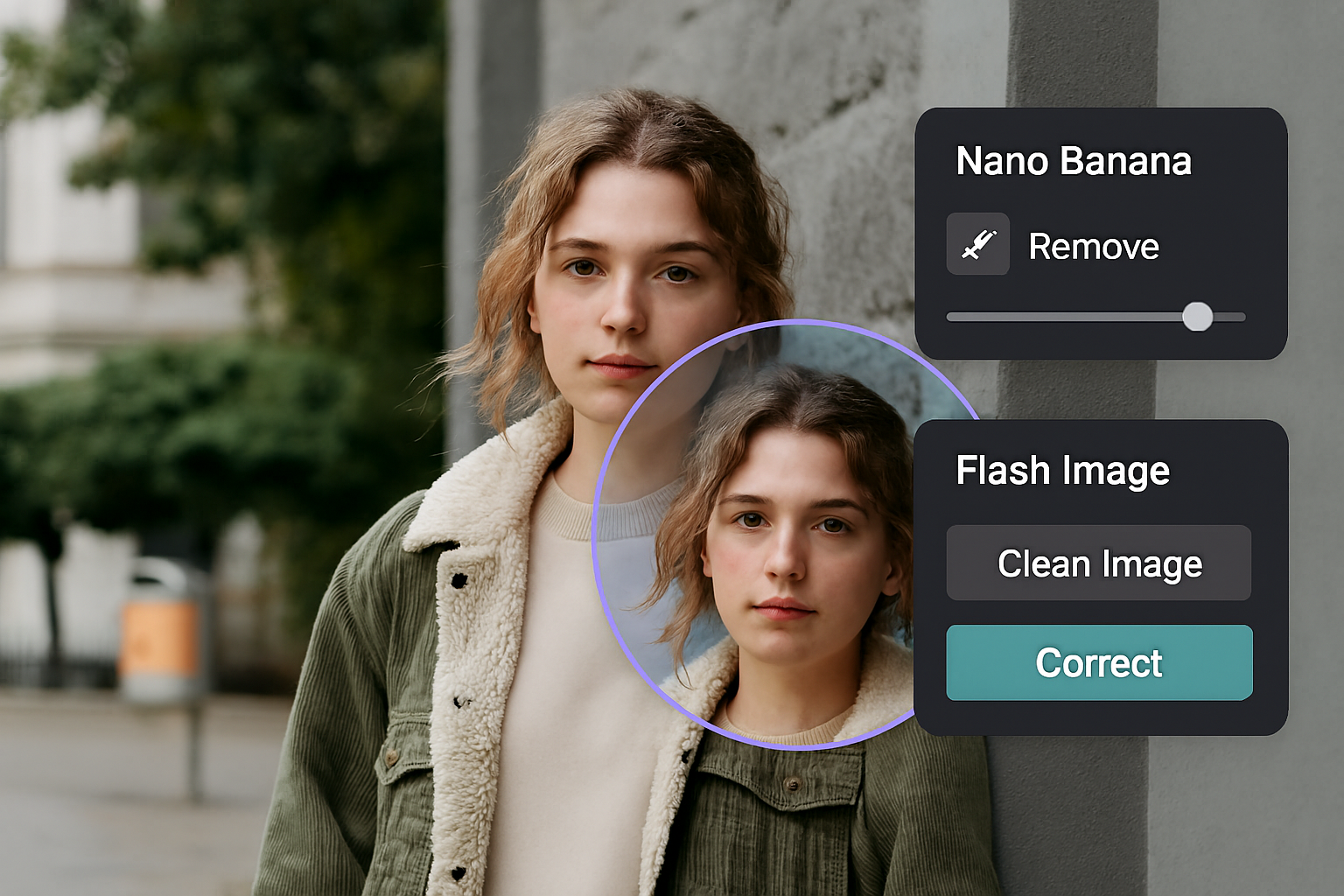
- Run auto-enhance: Click the “Clean Image” prompt. Nano Banana identifies and removes small blemishes, stray objects, and digital noise in a single pass.
- Spot-heal distractions: Switch to the “AI Remove” brush for larger items—poles, trash cans, photobombers. Zoom to 200% to confirm edge transitions look natural.
- White balance adjustments: Use the built-in sliders: increase Temp by +5 if your photo feels cold; decrease Tint by –3 if skin tones lean green.
- Apply local masks: Draw a radial mask around your main subject, boost exposure +0.3, and subtly increase clarity +5. This draws attention without overexposing.
- Skin smooth settings: Under “Skin Smooth,” set strength to 10%. This preserves pores while evening out minor imperfections.
- Export intermediate file: Download a high-quality PNG or JPEG (quality ~95%) for detailed work in Flash Image.
- Save your Nano Banana preset: Name it “AI Cleanup Base” so you can apply the same settings to subsequent images.
✨ Fine Tuning with Gemini 2.5 Flash Image – 5 Steps
- Import into AI Studio: Open Google AI Studio, choose the “Flash Image” tool, and upload your Nano Banana output.
- Detail Boost: Set “Detail Boost” to 15%. This sharpens edges on hair, eyes, and clothing without creating halos.
- Perspective Correction: For horizons or architectural shots, use “Perspective Correct” to straighten lines. Crop slightly if necessary to remove empty borders.
- Depth Blur: Apply a subtle background blur (Depth Blur at 8%) to isolate the subject. Adjust mask feather to 50% for smooth transitions.
- Final color grade: Use the “Tone Curve” panel: apply a slight S-curve for contrast, lift shadows +10 to avoid crushing, and compress highlights –5 to preserve detail.
🧑🦰 Advanced Skin and Subject Care Techniques
- Selective brightening: In Flash Image, use the brush tool to increase exposure +0.2 specifically on eyes. This adds sparkle without making whites look artificial.
- Subtle catchlight enhancement: Duplicate the layer, mask to the iris, and increase highlights +20% on a low-opacity layer for more natural eye reflections.
- Hue-saturation refinement: Open HSL panel, target the orange channel: drop saturation –5 and adjust luminance +10 to correct overly warm skin tones.
- Avoid over-smoothing: Always compare zoomed mask edges. If skin appears plastic, reduce smoothing strength until pores are visible again.
- Clothing color repair: If fabrics lose vibrance, apply a small color boost (+10 saturation) using a linear gradient mask just over clothing areas.
🧽 Background Cleanup and Object Removal Deep Dive
- Pattern consistency: For textures like brick walls or tiled floors, sample a clean patch, copy-paste, and blend using the clone tool in Krea.ai before running object removal.
- Edge refinement: After AI remove, switch to manual brush at 50% hardness and paint over edges to ensure no visible seams.
- Color spill correction: If the background cast color onto your subject, use Flash Image’s “Color Spill Remove” tool, sampling the background hue to neutralize fringes.
- Gradient filters: Apply a linear gradient filter on the sky or wall to even out exposure differences—keep midtones intact to avoid flatness.
- Final clean pass: Zoom to 400%, inspect corners and edges. Use spot heal sparingly for remaining dust spots or sensor dust artifacts.
🎨 Color Grading and Mood Enhancement
- Establish a look: Decide on a warm, cool, or neutral mood before grading. Warm (golden hues) suits lifestyle; cool (teal shadows) fits tech and modern brands.
- Split toning: In Flash Image’s “Split Tone” panel, add 10 hue points to highlights (warm) and 5 points to shadows (cool) to create a complementary color balance.
- Vignette for focus: Use “Vignette” at –15 strength with mid-point 40% to subtly darken edges and draw eyes toward the center.
- Curve tweaks: Create a gentle F-curve on the RGB channels for a matte finish: raise blacks to 10, lower whites to 90.
- Final check: Toggle before/after view. Ensure your color grade enhances, not dominates, the original story of the photo.
📐 Platform-Specific Export and SEO Considerations
- Instagram Feed: 1080×1350 (4:5), JPEG quality 85%, sRGB. Save as “IG_Post_Template”.
- Instagram Stories/Reels: 1080×1920 (9:16), leave 200px safe zones top and bottom for text/avatars.
- TikTok: 1080×1920, avoid heavy overlays. Keep main subject in the center third for vertical framing.
- Twitter/X: 1200×675 (16:9) or 1080×1350 for vertical. Include subtle site watermark on consistent corner for brand recall.
- YouTube Thumbnail: 1280×720, PNG or high-quality JPEG, ensure face or subject occupies 60% of the frame for best CTR.
🛡️ Ethics, Privacy, and Compliance
- Consent first: Always get permission before editing identifiable people. For minors, obtain parental approval in writing.
- Metadata scrub: Before posting, remove GPS and camera EXIF data in Flash Image’s “Metadata Cleaner” to protect location privacy.
- Retouch disclosure: If you’re a photographer or retoucher, note “Retouched for clarity” in captions or handoff notes.
- No feature fabrication: Avoid altering facial structure—cleanup should enhance, not transform, identities.
- License compliance: Ensure any AI model usage adheres to platform terms—Nano Banana and Gemini Flash Image both allow commercial use as of latest releases.
🔧 Common Pitfalls and Troubleshooting
- Banding artifacts: If you see color banding, add grain +5 in Flash Image’s “Grain” panel to smooth gradients.
- Harsh halos: If radial masks produce halos, lower feather radius or reduce exposure boost to +0.2.
- Over-desaturation: If colors look flat after HSL tweaks, nudge global saturation +3 and use selective vibrance on accent colors.
- Slow processing: For large files, reduce upload resolution to 2K for initial cleanup, then apply to full-res only on final export.
- Model glitches: If Nano Banana removes needed details, switch off “Auto Remove” and spot heal manually.
📊 Integrating Cleanup into Your SOP
- Document each step in a shared Google Doc or Notion page titled “AI Photo Cleanup SOP.”
- Link presets in Krea.ai and Studio with names and versions, so teammates can load settings instantly.
- Include screenshots of UI panels with callouts for slider positions and tool names.
- Schedule quarterly reviews to update tool versions and tweak parameters based on new releases.
- Train new team members with a 15-minute hands-on session following this playbook verbatim.
📅 Latest News
- Nano Banana v1.2 released Sep 12 2025 by Google DeepMind (https://deepmind.com/research/nano-banana)
- Krea.ai integration launched Oct 1 2025 (https://krea.ai/blog/integrations)
- Gemini 2.5 Flash Image update rolled out Aug 30 2025 in Google AI Studio (https://blog.google/ai-studio)
✅ What to do after reading this
- Save combined presets for Nano Banana + Flash Image in Krea.ai and AI Studio for future projects.
- Build export presets for Instagram, TikTok, X, YouTube in your preferred folder structure.
- Share the SOP document with your team and conduct a quick training session.
- Monitor engagement metrics on cleaned-versus-uncleaned posts to measure ROI.
- Set a quarterly calendar reminder to revisit and update this workflow with new AI tool releases.